
Editing a Load
Open any load — from the Load List, the Dispatch Center, or a link on an invoice — to reach the load detail page. This is where you adjust a load after it's created: its stops, products, paperwork, assignment, and schedule.
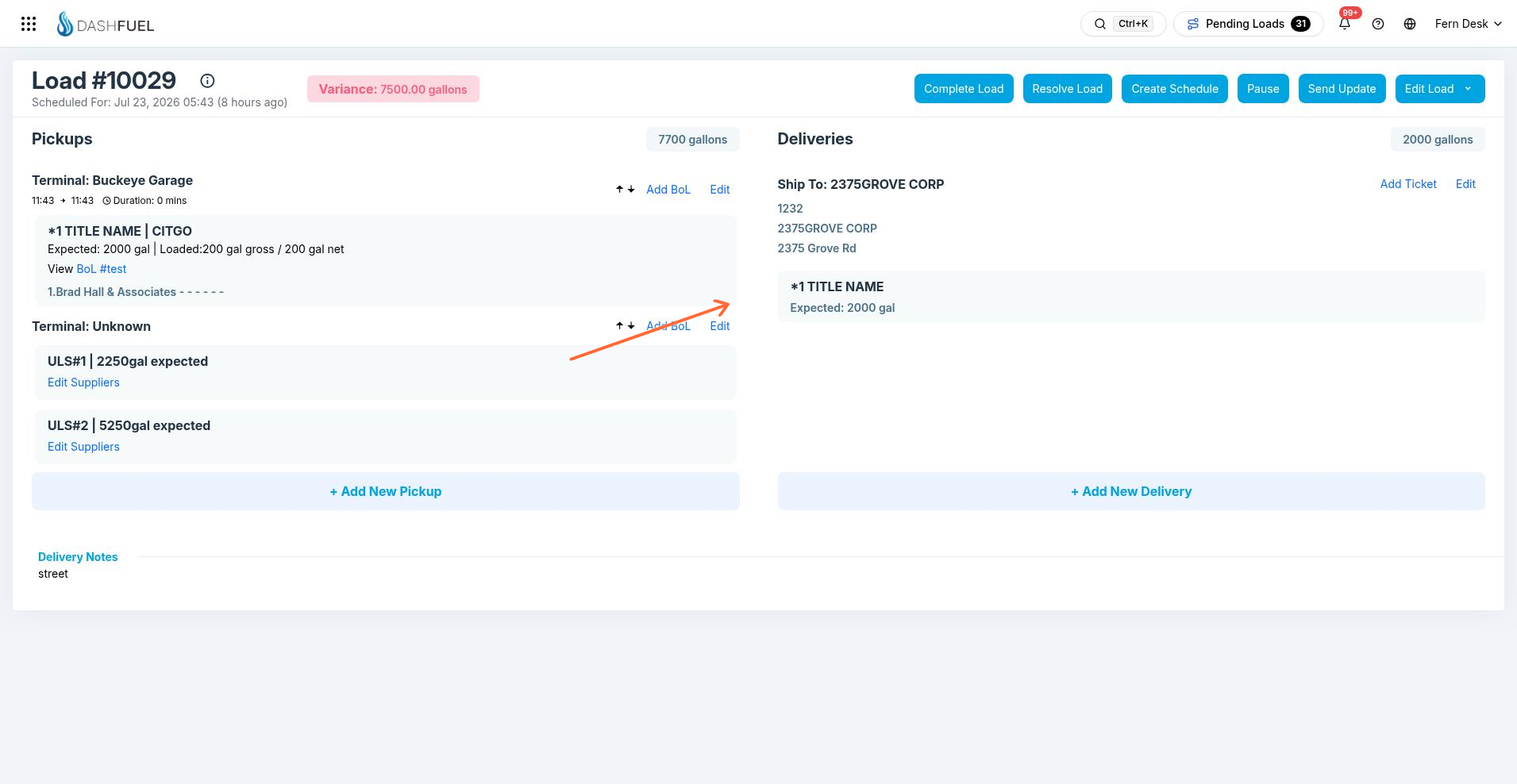
Header actions
Action | What it does |
|---|---|
Propose Load | Offers the load to a driver or carrier to accept or reject |
Resolve Load | Records a resolving note; a rejected load returns to Scheduled |
Create Schedule | Turns this load into a recurring schedule template (see Recurring Loads) |
Pause / Unpause | Holds the load; paused loads can't be completed until released |
Edit Load | Opens the quick-edit panel (below) |
The header also shows badges when the load is pending confirmation or was rejected, so you know why it isn't moving.
Quick edit
Edit Load opens an inline editor for the fields dispatchers change most:
Start Time / End Time
Driver and Secondary Driver — changing the driver notifies both the old and new driver, and re-points the load's freight bill
Truck and Trailer
Contact Person, Priority, and Notes
From the same menu you can Copy Load (duplicate it and open the copy), Delete it (with an undo option), or restore an archived load. Admins and managers also get Load History, which opens the audit timeline for this load — see View Load History.
Pickups
The Pickups panel lists each terminal stop with its products and expected gallons. From here you can:
Edit the pickup or its suppliers (supplier, terminal, loading number).
Add BoL — attach the Bill of Lading; once BoLs are captured, the load may prompt you to reconcile them against the pickup products.
Add New Pickup for multi-terminal runs.
Deliveries
The Deliveries panel lists each customer stop with its location, tanks, and expected gallons. From here you can:
Edit the delivery (products, quantities, tanks, PO number, times).
Add Ticket / View tickets — the delivery's paperwork.
View Invoice — jump to the freight bill generated for this delivery.
Add New Delivery to add another stop.
Warnings on the load
DashFuel surfaces non-blocking warnings directly on the load when something looks off — for example, a BoL whose loading number doesn't match what was planned, or a picked-up product that doesn't match any tank at the delivery location. These same alerts follow the load onto its invoice.
What you can't change
A completed load is locked down for billing; use the invoice workflow for corrections.
A load whose freight bill has been invoiced can't be deleted — you'll be directed to credit and rebill instead.
A pre-loaded load can't be completed until it's actually delivered.