
Loads Overview
A load is one truck run: fuel is picked up at one or more supplier terminals and delivered to one or more customer locations. Loads are the heart of dispatching in DashFuel — you create them, schedule them to drivers, track them through the day, and when a driver completes one, DashFuel automatically prices it and generates the invoice (see the Freight Billing collection).
Anatomy of a load
Every load is built from the same parts:
Pickups — stops at a supplier terminal. Each pickup lists the products and quantities to load, plus the intended supplier, terminal, and loading number. The paperwork for a pickup is its BoL (Bill of Lading).
Deliveries — stops at a customer location. Each delivery lists the products, quantities, and destination tanks, and carries the PO number, reference number, arrival/departure times, and delivery tickets.
Assignment — the driver (and optionally a secondary driver), truck, and trailer.
Delivery window — the start and end times the delivery is expected within.
Notes — delivery notes for the driver, and back-office notes for your team.
The difference between total gallons picked up and total gallons delivered is shown on the load as retained gallons, so imbalances are easy to spot.
Load statuses
Status | What it means |
|---|---|
Unscheduled | Created, but no driver or time committed yet |
Scheduled | Assigned to a driver with a scheduled time |
Proposed | Offered to a driver or carrier, waiting for them to accept |
Rejected | The driver or carrier declined (a reason is recorded) |
Active | The driver has started the run |
Loaded | Product has been picked up and is en route |
Pre-loaded | Loaded ahead of schedule (delivery happens later) |
Paused | Manually held — a paused load can't be completed until unpaused |
Problem | Something needs a dispatcher's attention |
Completed | Delivered and finalized — this triggers invoicing |
Automated Pending | Generated by automation and waiting for a dispatcher to accept it |
The Load List shows every load with its status, driver, customer, location, products, preferred supplier, delivery window, and scheduled time. Quick filters jump to In Progress, Unscheduled, Today, or Tomorrow, and Create Load opens the create form (see Create a load on the web).
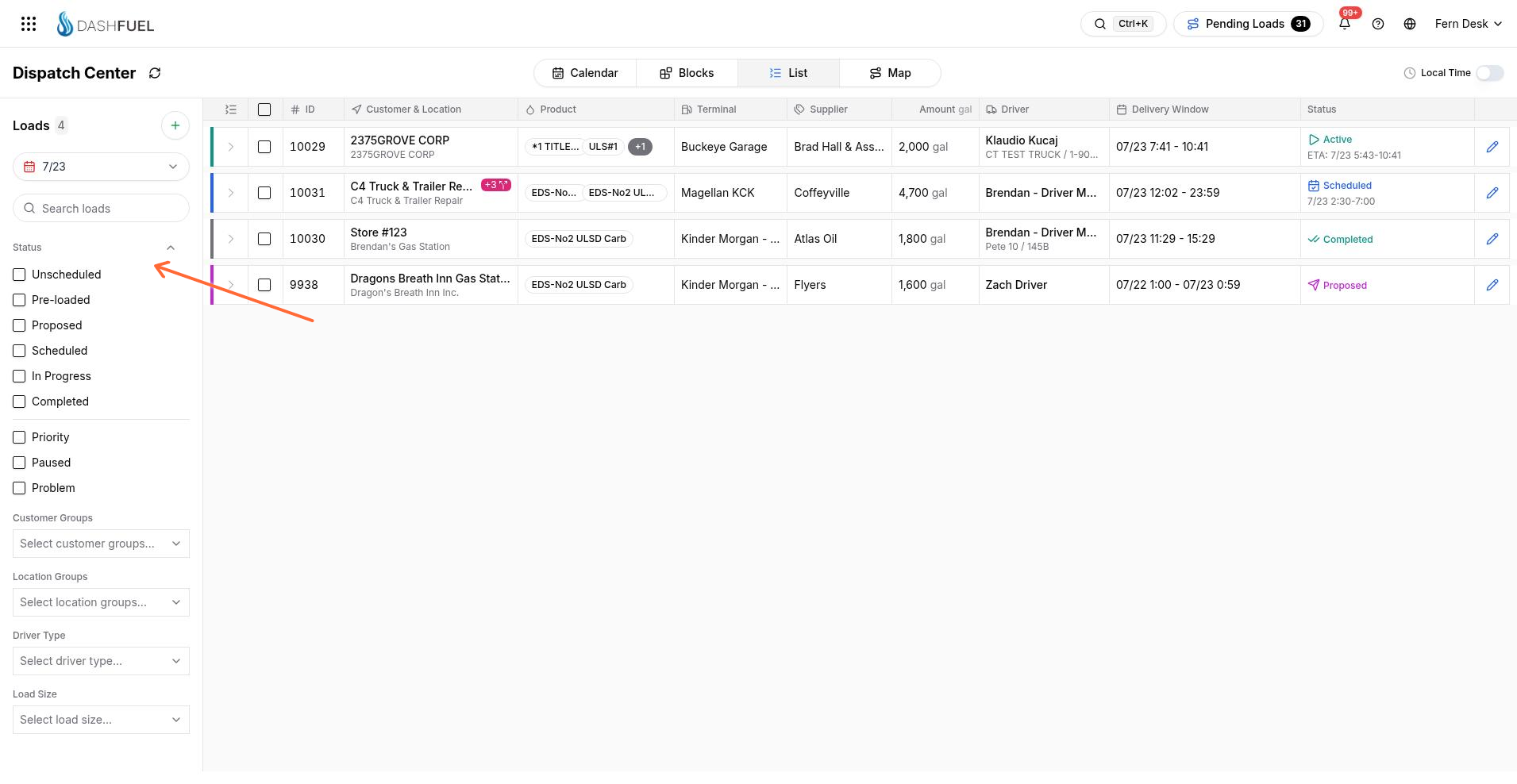
Click a load's ID to open it. The pencil icon opens the same load detail page, where all editing happens.
Every change is recorded
Loads keep a complete activity history — every creation, schedule change, pickup fill, BoL, status change, and note is recorded with who did it and when. Admins and managers open that audit timeline with Load History on Edit Load — see View Load History.
What happens when a load completes
When the driver completes a load, DashFuel automatically:
Applies pricing to the delivered products.
Posts the inventory transactions.
Generates a freight bill (invoice) for each delivery and places it in the billing review queue.
Reconciles the BoL paperwork captured by the driver against the pickups.
Loads with invoiced freight bills can no longer be deleted — corrections go through the billing credit-and-rebill workflow instead.