
Inventory Management overview
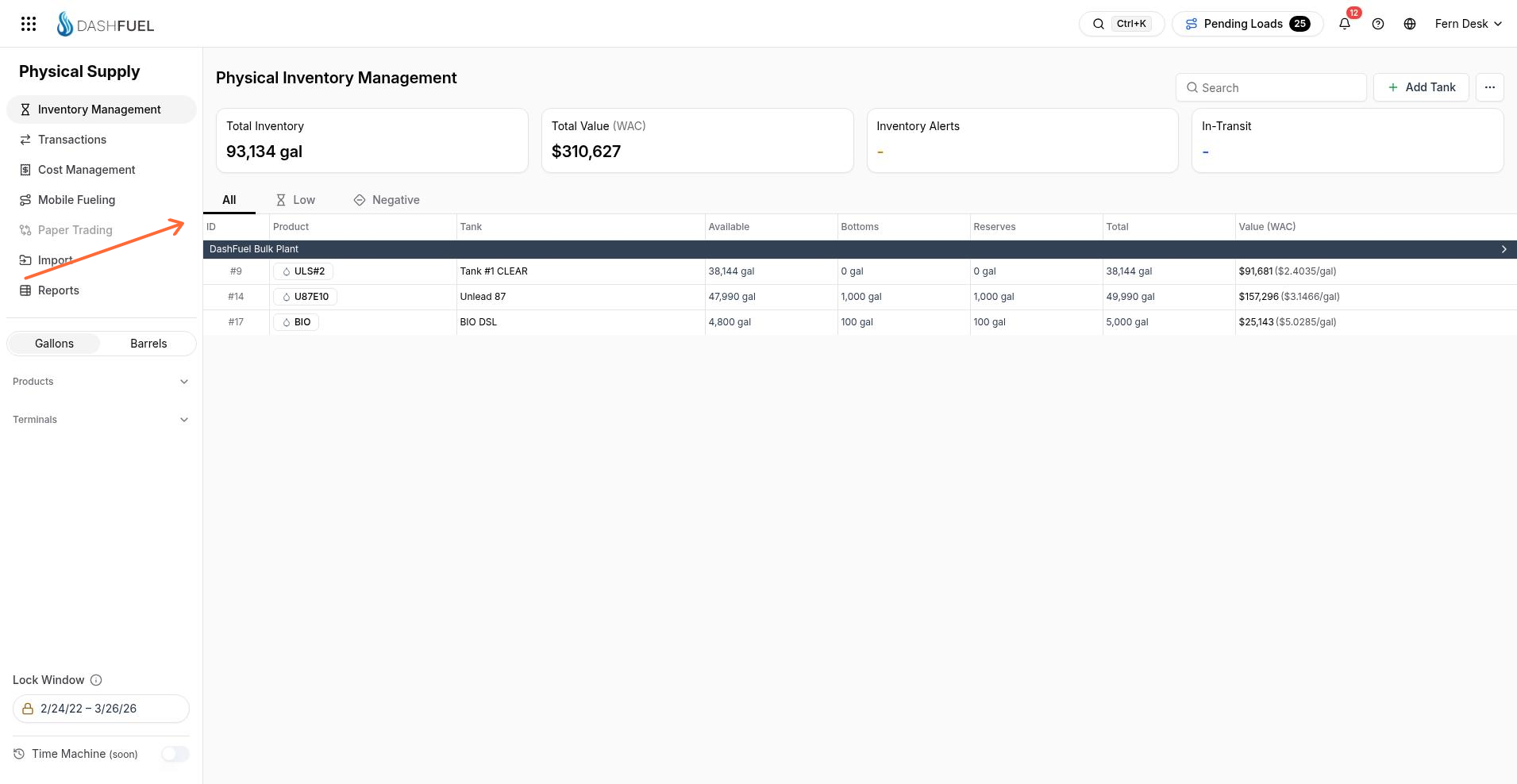
Inventory Management is where you review terminal tanks, balances, and inventory value. In the Physical Supply sidebar, open Inventory Management. The page title is Physical Inventory Management.
When a load completes, DashFuel also posts inventory transactions automatically. That path is covered in Loads Overview. Use Inventory Management to inspect tank setup and current balances after those movements.
What you see on the page
The page has a header, four summary cards, All / Low / Negative tabs, and a tank table grouped by terminal.
Search — search field next to Add Tank.
Add Tank — opens the create-tank drawer.
A three-dot menu next to Add Tank — opens page actions, including Costing Method.
Quantities display with a unit suffix such as gal.
Physical Supply sidebar
While you are on Inventory Management, the left sidebar is labeled Physical Supply and includes these controls.
Navigation: Inventory Management, Transactions, Cost Management, Mobile Fueling, Paper Trading, Import, and Reports.
Gallons / Barrels — unit toggle for how volumes are shown.
Products and Terminals — filters for the inventory list.
Lock Window — date range control.
Time Machine (soon) — listed in the sidebar.
Summary cards
Four cards sit above the tank table.
Total Inventory — total inventory volume for the current list view, with a unit such as gal.
Total Value (WAC), Total Value (FIFO), or Total Value (LIFO) — total inventory value for the selected costing method.
Inventory Alerts — alert summary; can show - when there is nothing to display.
In-Transit — in-transit summary; can show - when there is nothing to display.
All, Low, and Negative tabs
Use the tabs above the table to narrow which tanks appear.
Tab | What it shows |
|---|---|
All | Every terminal tank in the current filters. |
Low | Tanks where Available is less than or equal to zero. |
Negative | Tanks where Total inventory is less than zero. |
Tank table
Rows are grouped under terminal names. Each tank row shows these columns.
Column | What it shows |
|---|---|
ID | Tank ID, shown with a leading #. |
Product | Product on the tank. |
Tank | Tank name. |
Available | Available volume, with unit. |
Bottoms | Bottoms threshold volume, with unit. |
Reserves | Reserves threshold volume, with unit. |
Total | Total inventory volume, with unit. |
Value (WAC), Value (FIFO), or Value (LIFO) | Inventory value for the selected costing method, including a total dollar amount and a per-unit rate such as $/gal. |
Click a terminal group header to open that terminal. Click a tank row to open that tank in the detail panel.
Costing method
From the three-dot menu next to Add Tank, set Costing Method to WAC, FIFO, or LIFO. The default is WAC. The selection changes the value card label, the value column label, and the dollar figures shown; it does not change the quantity columns.
Empty states
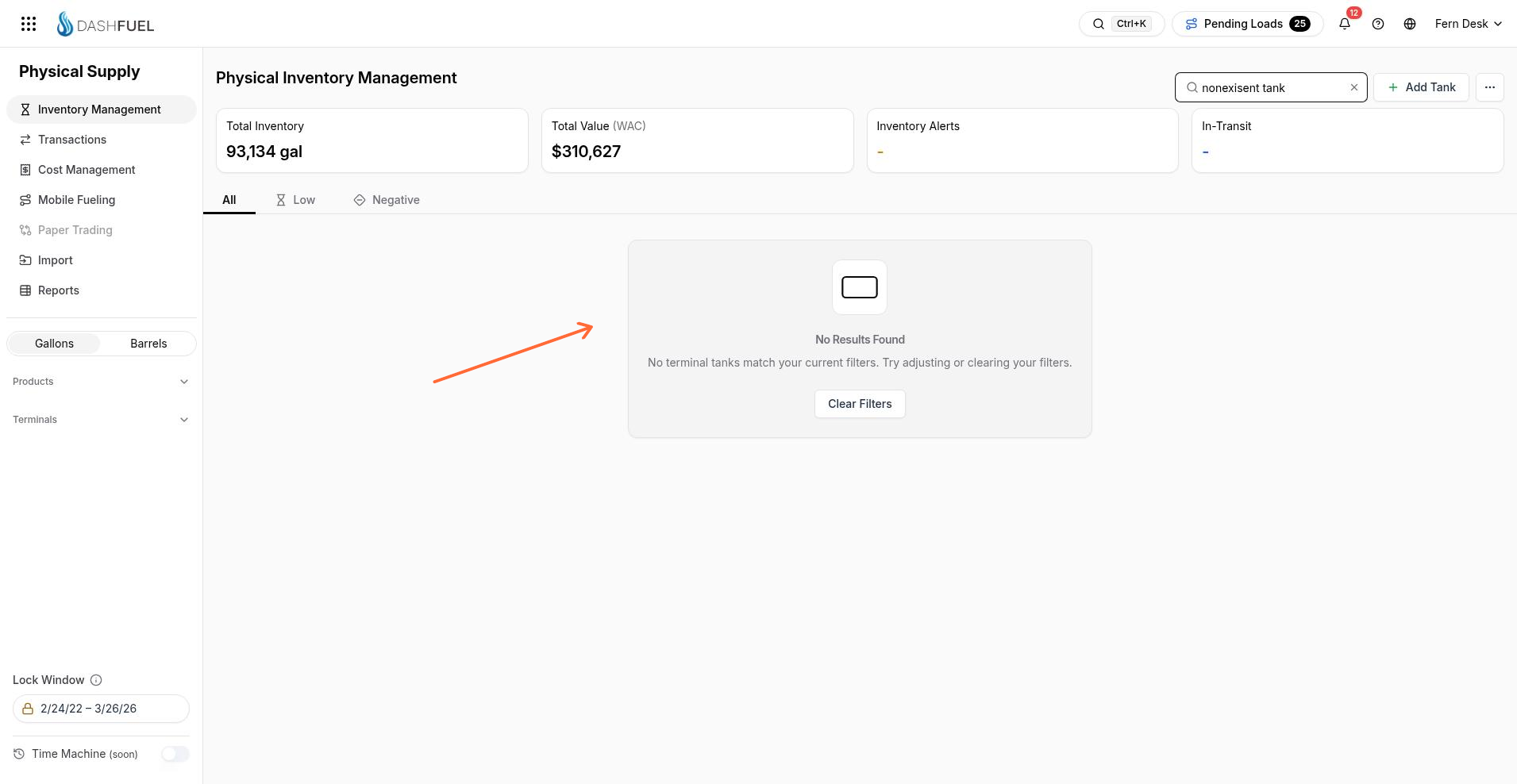
When no tanks match the current view, the table area shows No Results Found.
No terminal tanks found. — nothing in the full list.
No terminal tanks with low inventory levels found. — Low tab has no rows.
No terminal tanks with negative total found. — Negative tab has no rows.
No terminal tanks match your current filters. Try adjusting or clearing your filters. — search or filters are active. Use Clear Filters to reset them.
What's next
Create tanks with Add a tank in Inventory Management, or open a row to review a terminal or tank in Inventory Management.