
Recurring Loads
For standing deliveries — the customer that gets a drop every Monday and Thursday, the site topped off every morning — set up a recurring load instead of creating each one by hand.
How it works
A recurring load is a template load plus a schedule. DashFuel looks ahead about a week and automatically creates a copy of the template load for each upcoming occurrence. If the schedule has a driver attached, each generated load is scheduled straight to that driver; otherwise the loads appear as Unscheduled for you to dispatch normally.
Creating one
Open (or create) the load you want to repeat.
Click Create Schedule in the load's header.
Name the schedule and choose the pattern — specific days of the week, or an hourly interval — and optionally the driver.
Managing schedules
The Scheduled Loads page lists every recurring schedule with its base load, name, and pattern:
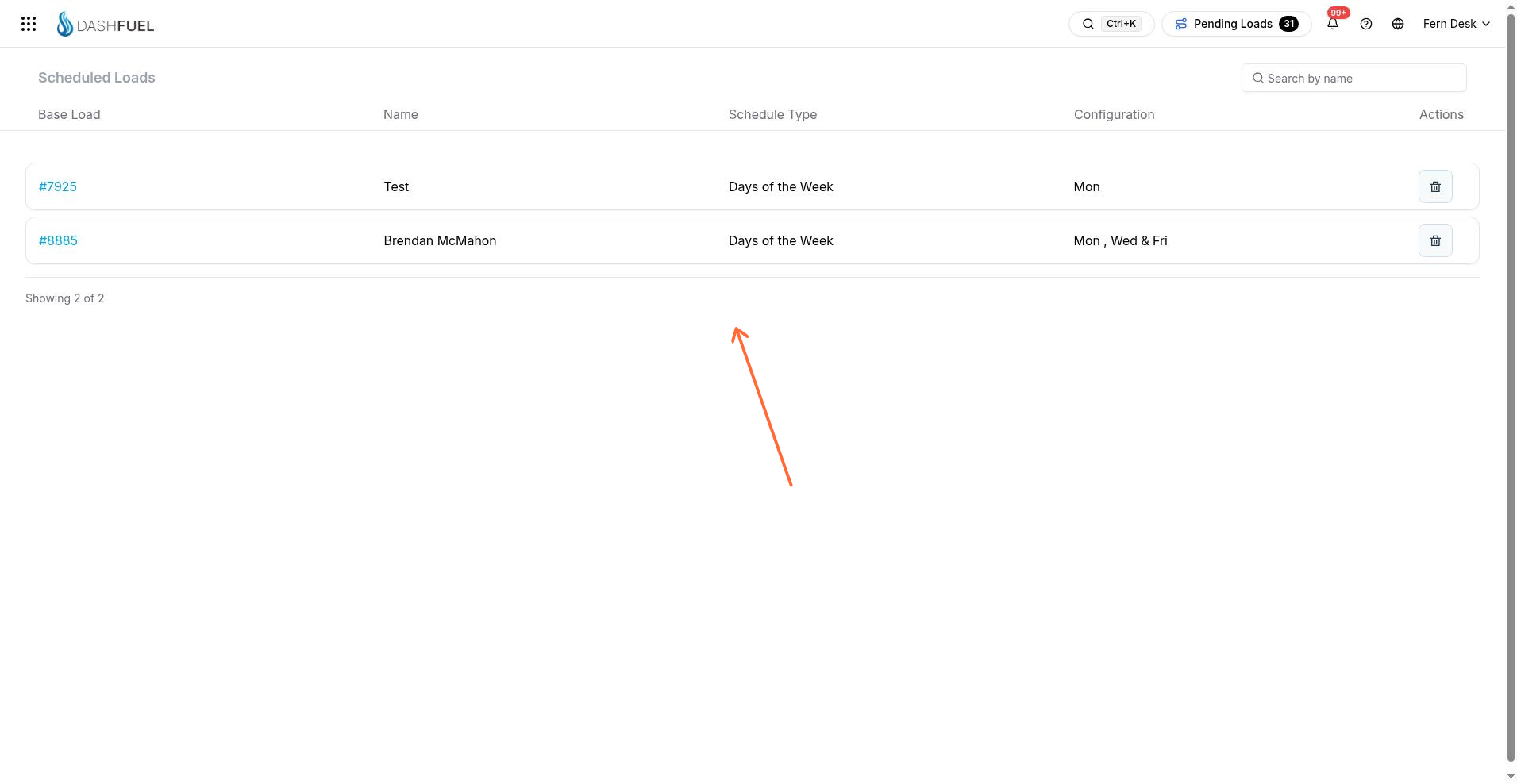
Click the base load to review the template (changes to the template affect future generated loads), or delete a schedule to stop generating new loads. Loads that were already generated are unaffected — cancel those individually if needed.