
Review a terminal or tank in Inventory Management
Open a terminal or tank from the Inventory Management table to inspect balances, capacity, transactions, and cost actions.
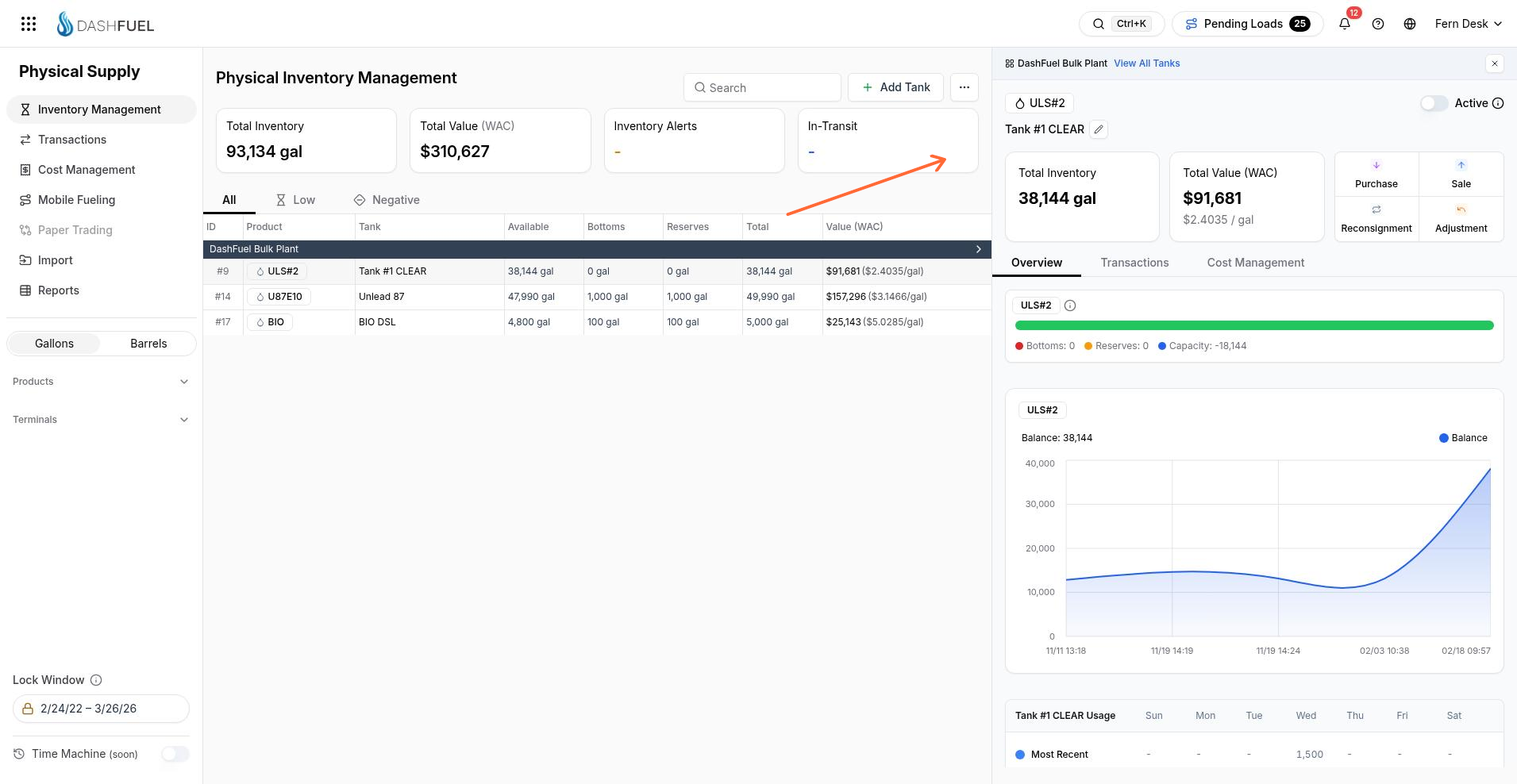
Open a terminal or tank
Use the grouped tank table on Inventory Management.
In the Physical Supply sidebar, open Inventory Management.
Optionally use Search, the All / Low / Negative tabs, or the sidebar Products and Terminals filters to narrow the list.
Click a terminal group header to open the terminal, or click a tank row to open that tank.
The detail opens in a panel on the right. Close it with Close panel.
Detail header
The header changes with what you opened.
Terminal view — shows the terminal name and View All Tanks.
Tank view — shows the product and tank name. Tank view also includes an Active toggle and Edit tank.
Tank detail also shows summary cards for Total Inventory and Total Value (WAC) (or the selected costing method), including a per-unit rate such as $/gal.
Purchase, Sale, Reconsignment, and Adjustment
From the tank detail panel you can open a transaction action with Purchase, Sale, Reconsignment, or Adjustment.
Overview, Transactions, and Cost Management tabs
The detail panel has three tabs: Overview, Transactions, and Cost Management.
Overview
Use Overview for capacity and balance context.
A capacity bar with legend values for Bottoms, Reserves, and Capacity.
A balance chart labeled Balance.
A Usage section below the chart.
Bottoms is the minimum inventory threshold. Reserves is the additional low-level threshold above bottoms.
Transactions
The Transactions tab lists storage transactions for the selected terminal or tank. Columns are ID, Type, Date, Product, Price, Quantity, Total, and Ctrpty. Click a row to open transaction details. More rows load as you scroll.
Cost Management
The Cost Management tab shows cost management details for the selection, including total inventory and total value for the selected costing method. When in-transit quantity is greater than zero, an in-transit chip can appear with the tooltip Total of In Transit storage transactions.
Edit a tank
Edit tank metadata from tank detail, not from the main table.
Open a tank row so the tank detail header is visible.
Select Edit tank.
Update editable fields, then select Save Changes.
In edit mode the sheet title is Edit Tank.
Terminal is locked.
Bottoms, Reserves, and Total Capacity are read-only.
You can change Name, Product, and Loading Number.
For a virtual terminal tank, you can change Supplier.
Edit validation requires Name and Product (and Supplier when that field applies). On success, DashFuel shows Tank updated successfully. On failure, it shows There was an error updating the tank.
Change the costing method while you review
From the three-dot menu next to Add Tank on the main page, set Costing Method to WAC, FIFO, or LIFO. The default is WAC. The selection updates the list-view value column, the summary total value card, and the cost figures shown in the detail panel.
What's next
Need a new tank first? See Add a tank in Inventory Management. For the list view, tabs, and columns, see Inventory Management overview.