
Reviewing Invoices
The Invoice List is your daily billing queue. Open it from the Paperwork section of the main menu (labeled Invoices). Every completed delivery appears here as an invoice, so you can review, approve, and invoice deliveries in bulk.
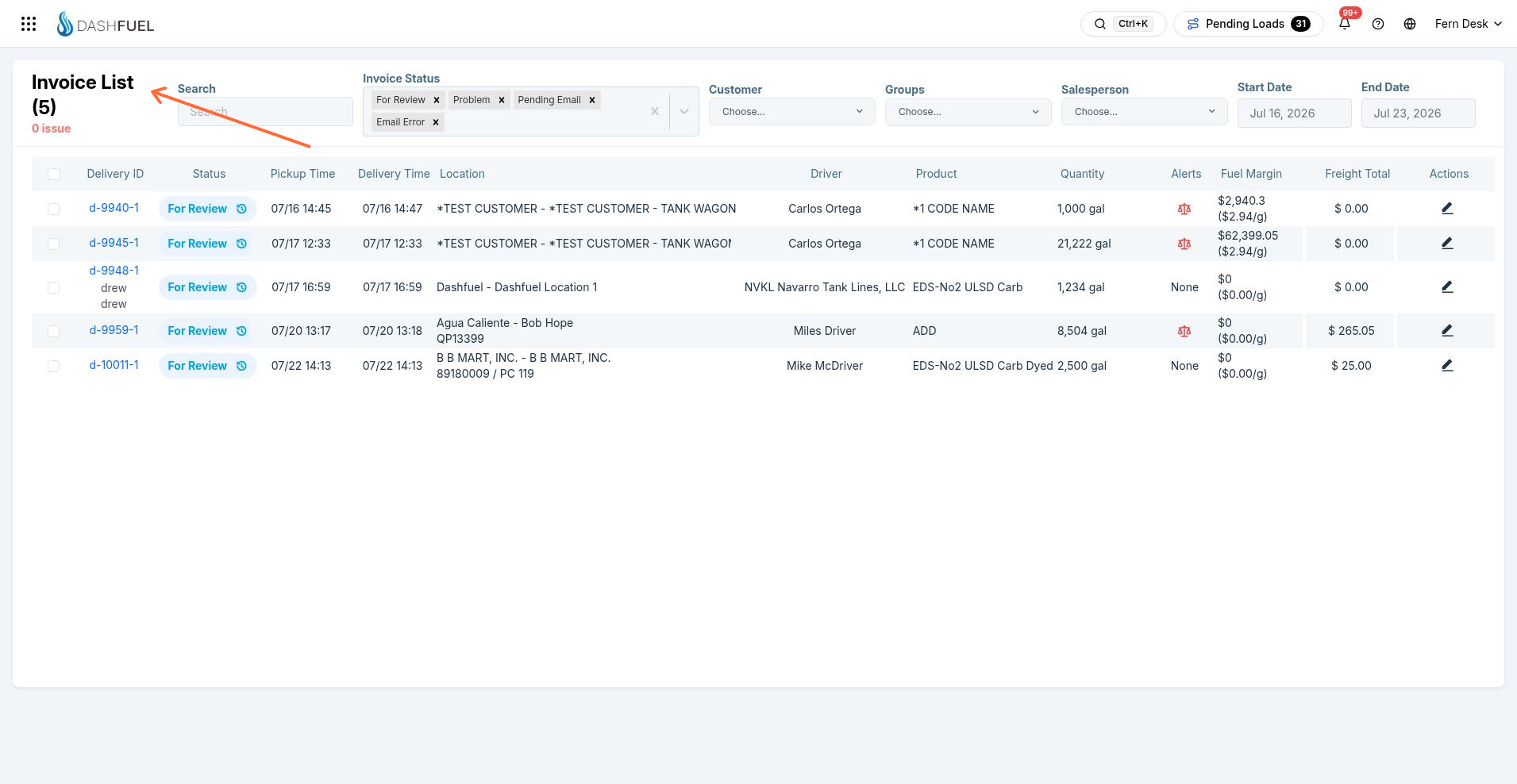
The header shows how many invoices match your current filters and, in red, how many have issues. Click the issue counter to jump straight to the invoices flagged Problem.
Filtering the list
Filter | Use it to |
|---|---|
Search | Find an invoice by delivery ID or other identifying text |
Invoice Status | Show one or more statuses. By default the list shows the statuses that need action: For Review, Problem, Pending Email, and Email Error |
Customer | Limit to one customer |
Groups | Limit to a customer group |
Salesperson | Limit to one salesperson's accounts |
Start Date / End Date | The delivery date range. Defaults to the last 7 days |
Your filters are remembered between visits.
Reading a row
Each row is one delivery's invoice: delivery ID, current status, pickup and delivery times, location, driver, products and quantities, and the freight total. The Alerts column warns about things worth a second look before you approve:
Pickup or delivery took longer than an hour (possible wait-time/demurrage charge).
Loading number mismatch — the BoL's loading number differs from the order.
A quantity variance between what was ordered and what was delivered.
Click a delivery ID to open the underlying load; click the pencil icon at the end of the row to open the invoice itself.
Acting on invoices in bulk
Select one or more invoices with the checkboxes, then:
Update Invoice Status — move the selected invoices to a new status (for example, mark a batch Approved), optionally setting the invoice date.
Invoice — finalize the selected invoices. You'll see a confirmation summarizing the total freight revenue before anything is sent.
Consolidated Invoice — combine two or more invoices for the same customer into a single invoice document.
Regenerate — throw away manual edits and re-price the selected invoices with the latest rates from Freight Bills Setup. Use this after fixing a rate configuration.
Export — download the selection as CSV (full or simplified), export driver pay, salesperson commissions, deliveries, or bulk-download BoLs and tickets.
Note: Exactly which columns and actions you see depends on your role and your company's configuration — for example, margin columns only appear for users with pricing access.