
Working with a Single Invoice
Open an invoice from the Invoice List by clicking the pencil icon on its row. The invoice page shows everything that goes onto the customer's bill for one delivery, and lets you correct it before it's finalized.
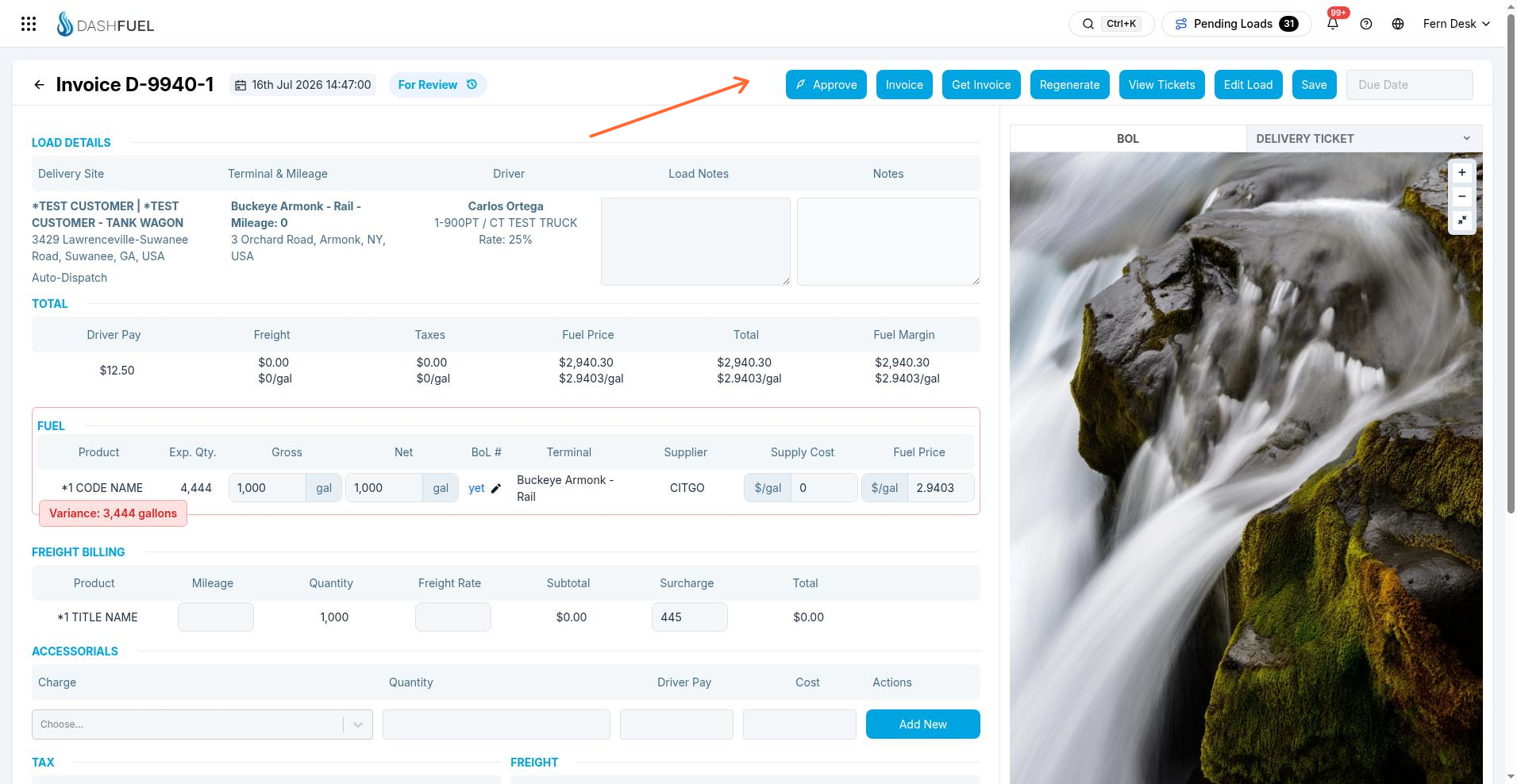
The header
The header shows the delivery ID and date, the current status, and any warning badges — for example Loading # Mismatch when the BoL's loading number doesn't match the order, or Split Load, Credited, Credit Invoice, and Rebilled badges on invoices with history.
Header actions:
Button | What it does |
|---|---|
Approve | Marks the invoice Approved (shown while it's For Review) |
Invoice | Finalizes the invoice and advances it to an invoiced status |
Get Invoice | Downloads the invoice PDF |
View Tickets | Opens the delivery tickets and paperwork for this delivery |
Regenerate | Re-prices the invoice from your current freight configuration, replacing manual edits |
Edit Load | Jumps to the underlying load record |
Save | Saves your edits and returns to the Invoice List |
Due Date | Sets the invoice due date |
Sections of the invoice
Load Details — the delivery site, terminal and mileage, driver, and notes. Load notes are editable here; the read-only notes column aggregates notes from the order and back office.
Total — a running summary of driver pay, freight, taxes, fuel price, the invoice total, and (for users with pricing access) fuel margin, each with a per-gallon figure.
Fuel — one row per product delivered: expected vs. gross/net quantities, the BoL(s) matched to the product, terminal, supplier, supply cost, and delivered price. If a delivery has multiple BoLs, choose which BoL belongs to each product here — misassigned BoLs are the most common cause of pricing problems.
Freight Billing — the freight line items: product, mileage, quantity, freight rate, subtotal, surcharge, and total. Each line can be edited and updated individually if the automatic pricing needs a correction.
Accessorials — extra charges (wait time, split delivery, pump-off, etc.) with their quantity, the amount billed to the customer, and any driver pay portion. Add or remove accessorials as needed.
Taxes — tax lines with charge, quantity, rate, and amount. A tax line can be rolled up so it's folded into the fuel rate on the printed invoice rather than shown separately.
Email Notes — free-text notes included when the invoice is emailed.
Correcting an invoice after it's been finalized
Invoiced invoices are locked — you'll be told to use credit and rebill if you try to edit one. Click Credit and Rebill:
DashFuel creates a credit invoice that reverses the original.
It generates a new copy of the invoice, back in the review workflow, for you to correct and re-approve.
The original is marked Credited and permanently locked; the credit and the rebill both link back to it.
This preserves a clean audit trail: nothing that was sent to a customer or your accounting system is ever silently changed.
Tip: When you finish one invoice, DashFuel can open the next For Review invoice from your filtered list automatically, so you can work the queue without going back to the list each time.