
Add a driver
Open Company Management → Users, choose Add User, turn on the Driver role, then create the user. DashFuel emails the new user an activation link so they can set their password.
Optional settings on the same form cover shift and schedule, allowed customers and locations, and default truck and trailer.
Create the user with the Driver role
Drivers are users with the Driver role turned on in Roles.
In the sidebar, open Company Management, then click Users.
Click Add User. The New User form opens.

In User Information, enter First Name, Last Name, Email, and Phone Number. Add External ID only if you track one.
In Roles, turn on Driver. The Driver Information section appears when Driver is on.
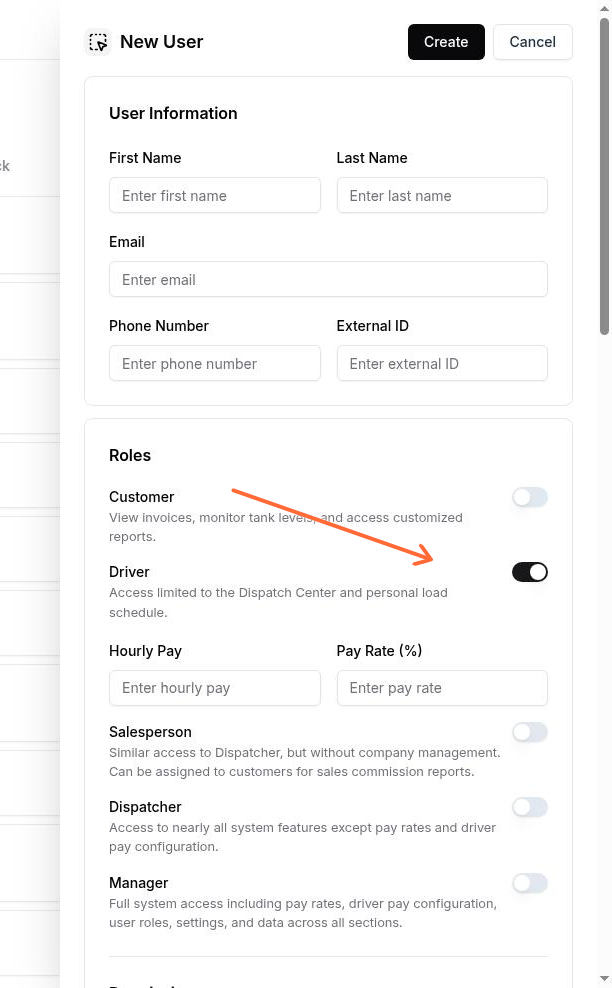
Set any optional fields you need (shift and schedule, allowed customers and locations, default truck and trailer), then click Create.
On success, DashFuel shows a toast that the user was created successfully. Creating the user also sends an activation email with subject Activate your account so they can set their password.
First name, last name, and phone number are required. An invalid email shows Invalid email address.
Set shift and schedule
Use Shift Override and Schedule on the new user form when the user has the Driver or Admin role.
With Driver turned on, open the Shift Override fields under Driver Information.
Set Shift Start Override and Shift End Override if this driver needs times other than the default. Both use 24-hour time and can be cleared.
In Preferences, under Schedule, choose a Default Schedule.
Select the weekdays this user is scheduled to work.
Schedule controls stay disabled unless the user has Admin or Driver in Roles. When they are disabled, DashFuel shows that schedule is enabled for dispatchers and drivers only.
Set allowed customers and locations
Set Allowed Customer, Allowed Locations, and Allowed Terminals in Customers & Locations.
In Customers & Locations, choose an Allowed Customer.
Choose one or more Allowed Locations.
Choose one or more Allowed Terminals if needed.
These fields are available on the standard user form. They are hidden for common carrier accounts.
Set default truck and trailer
Set Default Truck and Default Trailer in Preferences.
In Preferences, choose a Default Truck.
Choose a Default Trailer.
Both truck and trailer fields are clearable and support search.
When create fails
If the user cannot be created, DashFuel shows Failed to create user. Check required fields and the email format, then try again.