
Create load form fields
Use this reference for the web Create Load form fields, save actions, bulk options, and checks. For the step-by-step create flow, see Create a load on the web.
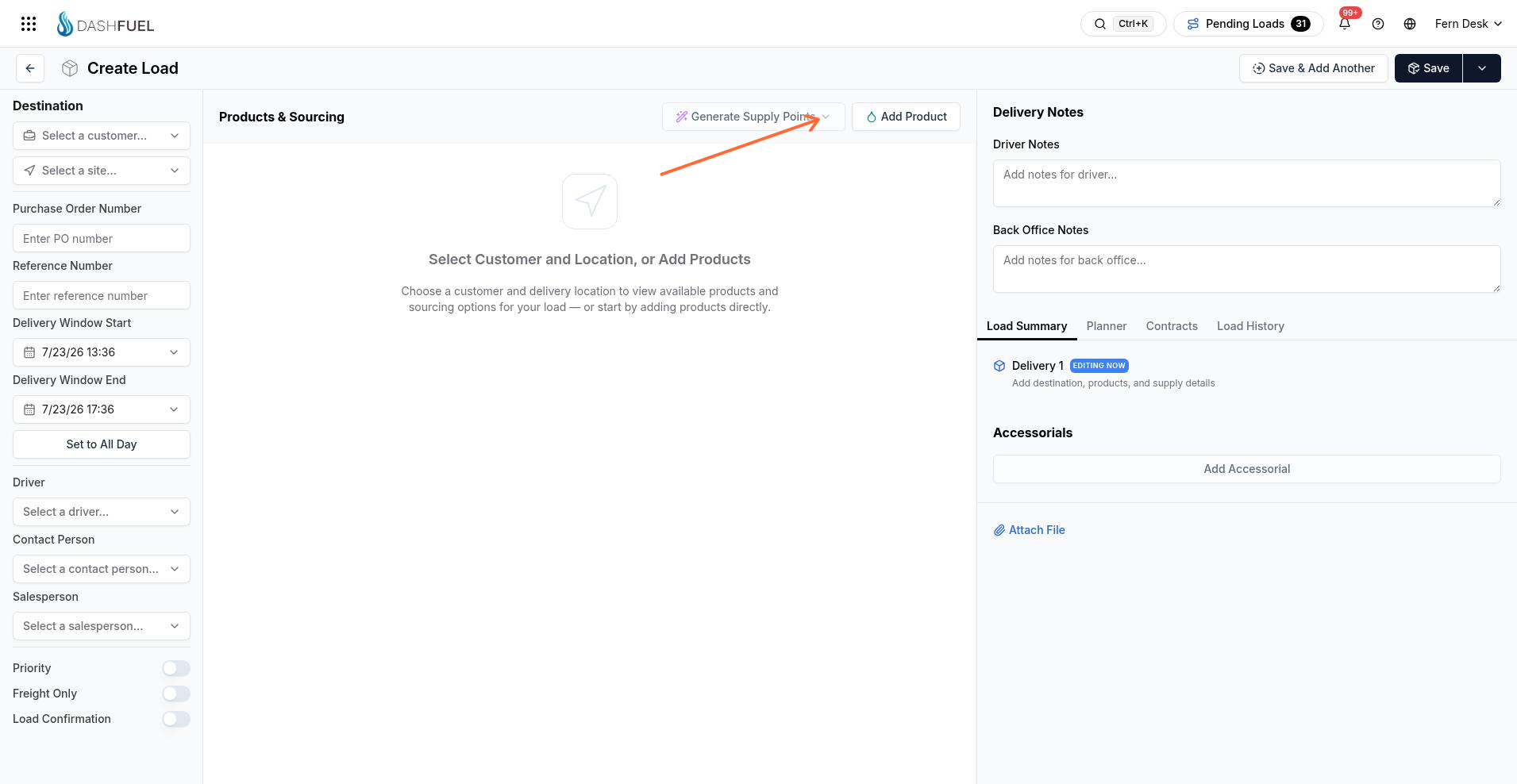
Destination
The left sidebar is labeled Destination.
Field | Notes |
|---|---|
Customer | Who the delivery is for. Drives site lookup and customer credit status on the form. |
Site | Delivery location. Affects timezone labeling on the delivery window. |
Purchase Order Number | Required when the customer is set to require a PO. Blocking validation message: PO number is required for this customer. |
Reference Number | Free-form reference for your tracking. |
Delivery Window Start / Delivery Window End | When the delivery should happen. Labels include the site timezone when available (for example Delivery Window Start (CDT)). Changing start sets end four hours later. End cannot be picked before the selected start. Unavailable weekdays from the site’s delivery windows are disabled in the pickers. |
Set to All Day | Sets the window from the start of that day to the end of that day. |
Driver | Optional assignment on create. |
Contact Person | Optional contact on the load. |
Salesperson | Optional salesperson on the load. |
Priority | Priority switch on the load. |
Freight Only | Freight-only switch. Hidden for common carriers. |
Load Confirmation | Load confirmation switch. Hidden for common carriers. |
When the selected customer has a credit warning, the form can show Credit limit exceeded.
Products & Sourcing
The center panel is labeled Products & Sourcing.
Add Product — add a product line.
Each line includes product, quantity, and sourcing details used on the load.
If no products are selected, the panel shows an empty state.
Supply-point generation controls are hidden for customers and stay disabled until site and product prerequisites are met.
Notes and summary
On smaller screens, open the right panel with Notes & Summary.
Delivery Notes — section heading for driver-facing notes; the field label is Driver Notes.
Back Office Notes — hidden for customers and common carriers.
Tabs (when you have price permission and you are not a customer): Load Summary, Planner, Contracts, Load History.
Load Summary, Contracts, and Load History are hidden for common carriers. Load History is also hidden when the load already exists.
Save actions
Header actions on create:
Save — creates one load. Success toast: Load LD-[id] created. Non-customers get a View action to the new load. The page then leaves create (back to where you came from, or home).
Save & Add Another — creates the load, then opens Load #[id] | Create Delivery so you can add another stop.
Duplicate Options — shown only when you are not in Create Delivery mode. Opens bulk create options for the draft.
In Create Delivery mode, Save and Save & Add Another still apply; Duplicate Options does not. Delivery success toast: Delivery for load LD-[id] created, with View Load for non-customers.
Duplicate Options
Bulk create from the create form uses these controls:
Orders per day
Duplicate across following days — helper text: 1 = today only, 3 = today + next 2 days
Default PO number
Auto-increment PO number — disabled unless the default PO ends in a digit. Helper text: PO number must end in a digit to enable auto-increment
Submit label reflects the count, such as Duplicate [n] order(s)
Full bulk success toast: [n] loads created (non-customers can open the first load from the toast). Partial success can report how many of the requested loads were created. Failure toast title: Failed to create loads.
Large batches can prompt Create Multiple Loads before continuing.
Checks before save
These checks run on the web create form.
Check | What happens |
|---|---|
End time after start time | Blocks save. Message: End time must be after start time. |
PO required for customer | Blocks save. Message: PO number is required for this customer. |
Delivery time outside site delivery windows | Warns in Scheduling Warning. Confirm with Proceed. Example copy: delivery start or end time is outside the delivery window for the site. |
Driver or equipment scheduling issues | Warns in Scheduling Warning when a driver is selected (for example terminal authorization, time off, or missing pump equipment). Confirm with Proceed. |
Product validation errors | Destructive toast with the product error message and Close. |
Create API failure | Toast titles: Failed to create load, Failed to create loads, or Failed to create delivery. |
Unavailable weekdays from the site’s delivery windows are disabled in the date pickers rather than shown as a separate text warning.
Related
Create a load on the web — web create steps
Recurring Loads — repeating schedules after a load exists
Loads Overview — statuses and load anatomy
Create a load in the mobile app — mobile create flow
View Load History — audit timeline for an existing load