
Payroll: Reviewing and Exporting Driver Pay
The Payroll page (Driver Pay → Payroll, managers only) is the pay review queue: every completed delivery's driver pay for a date range, with the tools to verify, adjust, mark paid, and export it.
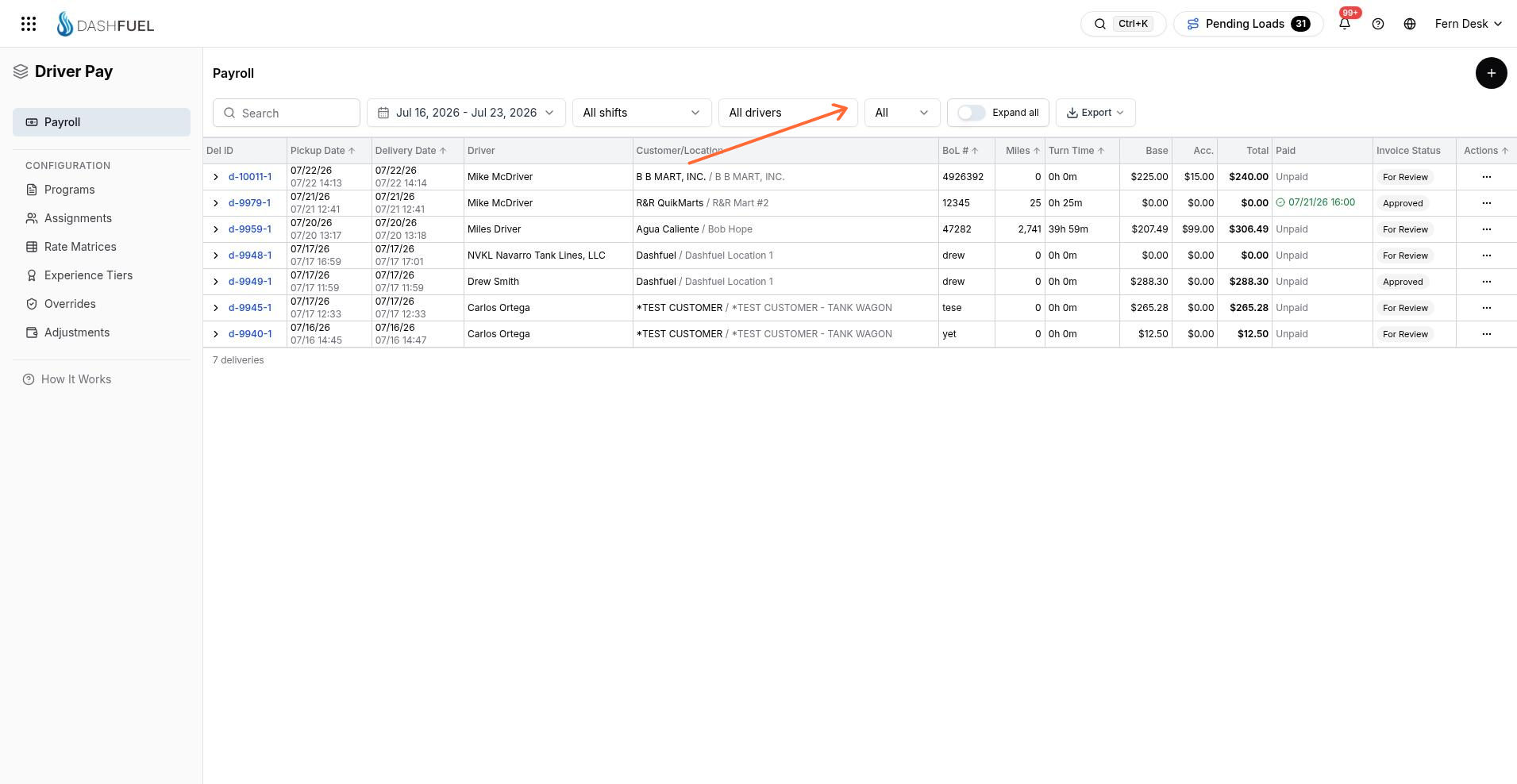
Filtering
Pick a date range (defaults to the last 7 days), then narrow by shift, driver, or paid status (All / Paid / Unpaid), or search. The shift filter maps to your driver schedules, so you can review one crew at a time.
Reading the queue
Each row is one delivery: delivery ID (linked to its invoice), pickup and delivery dates, driver, customer/location, BoL number, miles, turn time, then the pay columns — Base, Acc. (accessorial-derived pay), and Total — plus whether it's been Paid and the invoice status.
Toggle Expand all (or expand a single row) to see the full component breakdown: base, safety, night, weekend, holiday, accessorial, guarantee/floor top-ups, manual adjustments, and the line items behind each.
Manual adjustment rows appear inline alongside delivery rows, flagged so they're easy to spot.
Adjustments and guarantee top-ups
The + button creates a manual pay adjustment — an add or deduct in a category (detention, safety meeting, shop time, jury duty, and so on) attached to a driver and date. It can also apply a guarantee top-up: if a driver has a daily or period pay guarantee, DashFuel shows the shortfall and creates the top-up for you.
Manual adjustments have the highest precedence — they're never overwritten by recalculation. Editing a driver-pay amount directly on an invoice does the same thing under the hood: the difference is captured as an adjustment rather than silently replacing the calculated number.
Marking pay as paid
Pay can be marked paid per row, or in bulk by exporting. Paid pay is locked — the engine stops recalculating it, so later invoice changes can't quietly alter what someone was already paid. You can unmark a row if you need to reopen it.
Exporting
The Export menu offers:
Email CSV Export — a payroll CSV is emailed to you, and the included loads are marked paid.
Email Drivers Payroll PDFs — each driver receives their own pay statement PDF; included loads are marked paid.
Email User Payroll PDFs — a review copy: the PDFs are emailed to you only, and nothing is marked paid. Use this to double-check a pay period before finalizing.