
Set tank levels
Set capacity thresholds on a customer location tank from the capacity section when you create or edit the tank on Tanks & Products. To create the tank first, see Create a customer tank.
These levels apply to customer location tanks. Terminal tanks in Inventory Management use a different capacity model — see Add a tank in Inventory Management.
Open the tank form
Open the tank from the customer location’s Tanks & Products tab.
Open the customer location.
Select Tanks & Products.
To add levels on a new tank, choose Add Tank. To update an existing tank, choose Edit Tank, or open Tank Details and then Edit Tank.
What each level means
Enter the values that match how this tank should be monitored and filled.
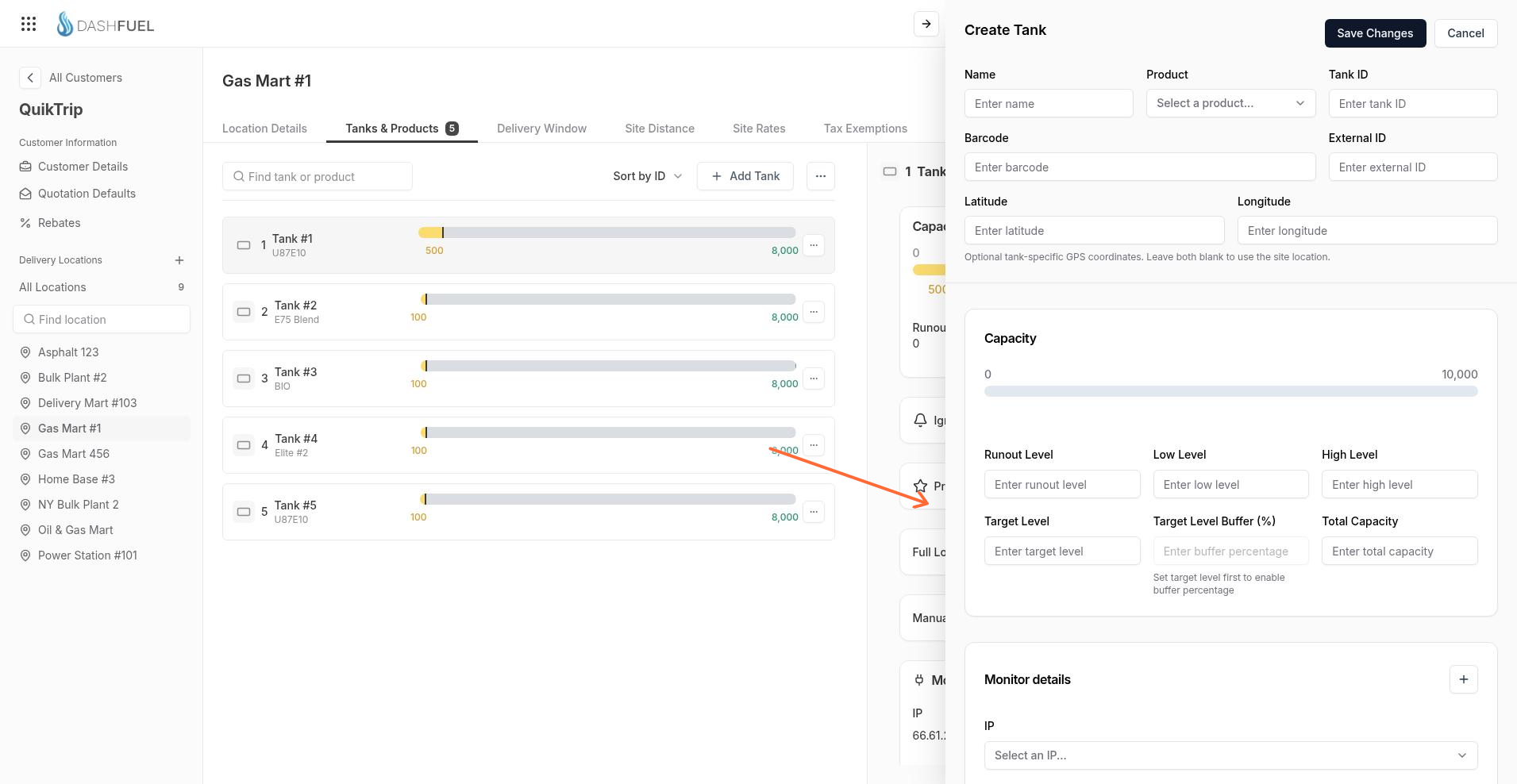
Runout Level — volume at which the tank is considered empty for runout prediction and automated load timing.
Low Level — threshold that can trigger low-level automation when that automation is enabled.
High Level — safety cap on how full the tank should get; also caps buffer math above the target.
Target Level — desired fill level for the tank.
Target Level Buffer (%) — optional percentage of total capacity added above the target level. Available after you set a target level. Effective fill target is target level plus capacity times this percentage, then capped by high level (or total capacity when high level is not set).
Total Capacity — full tank volume used as the tank’s maximum and in buffer calculations.
Set and save levels
On the tank form, enter the capacity values you need, then save.
Enter Runout Level, Low Level, High Level, and Target Level as needed.
If you use a buffer above target, set Target Level first, then enter Target Level Buffer (%).
Enter Total Capacity.
Select Save Changes.
When the tank has total capacity and at least one threshold, the tank list shows a capacity bar for that tank.
Ignore alarms on a saved tank
Ignore Alarms appears only on tanks that are already saved. Open the tank for edit and turn the switch on to stop monitoring alarms for that tank, or off to resume monitoring.